Setup an iPad as a Time Clock
These instructions are an optional step for businesses that want to have a Time Clock installed in their business for employees to use to clock in and out. Otherwise, employees can use the web page or mobile apps to track their time.
Hardware Requirements
Before beginning, please ensure you have purchased your Apple iPads and wall mounts.
Apple iPad requirements are as follows:
- Any generation 4 or later iPad (16GB of minimum storage).
- Any size iPad (ex: iPad, iPad Mini, iPad Air, iPad Pro).
- Device runs iOS software version 13 or later.
How to set up your iPad
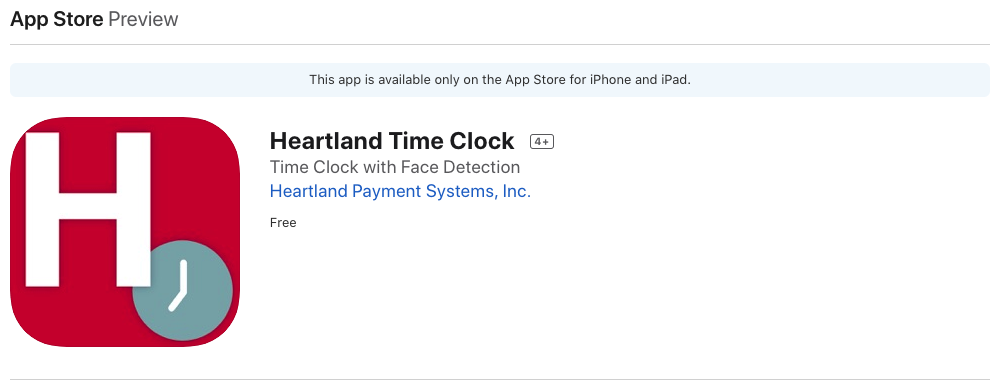
- The iPad app is available through the Apple App Store by searching for Heartland Time Clock, or through the following URL: https://apps.apple.com/tm/app/heartland-time-clock/id1474426808
- Once the app has downloaded, select Or setup clock using a Clock ID:
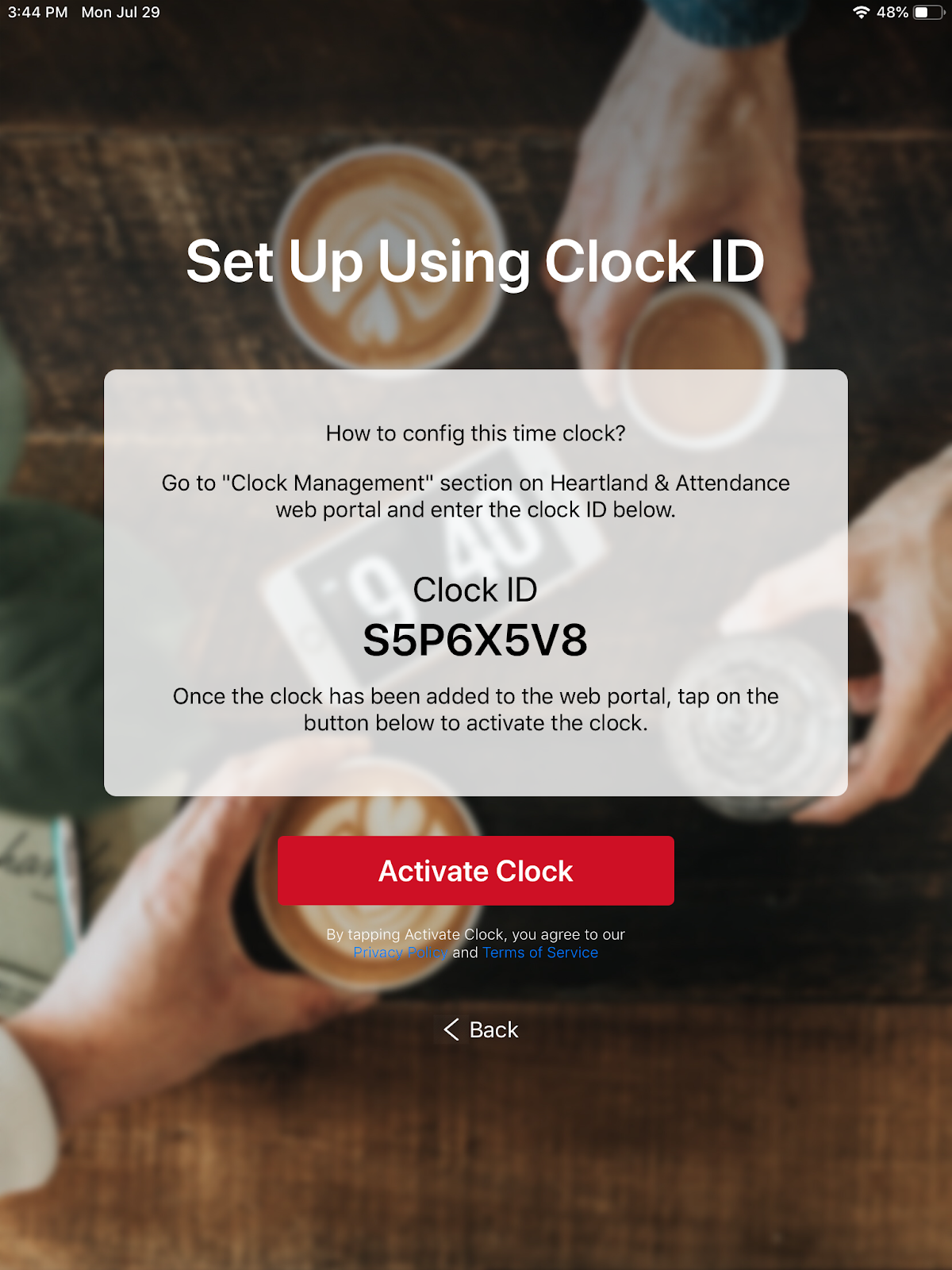
- From the Heartland Time web page:
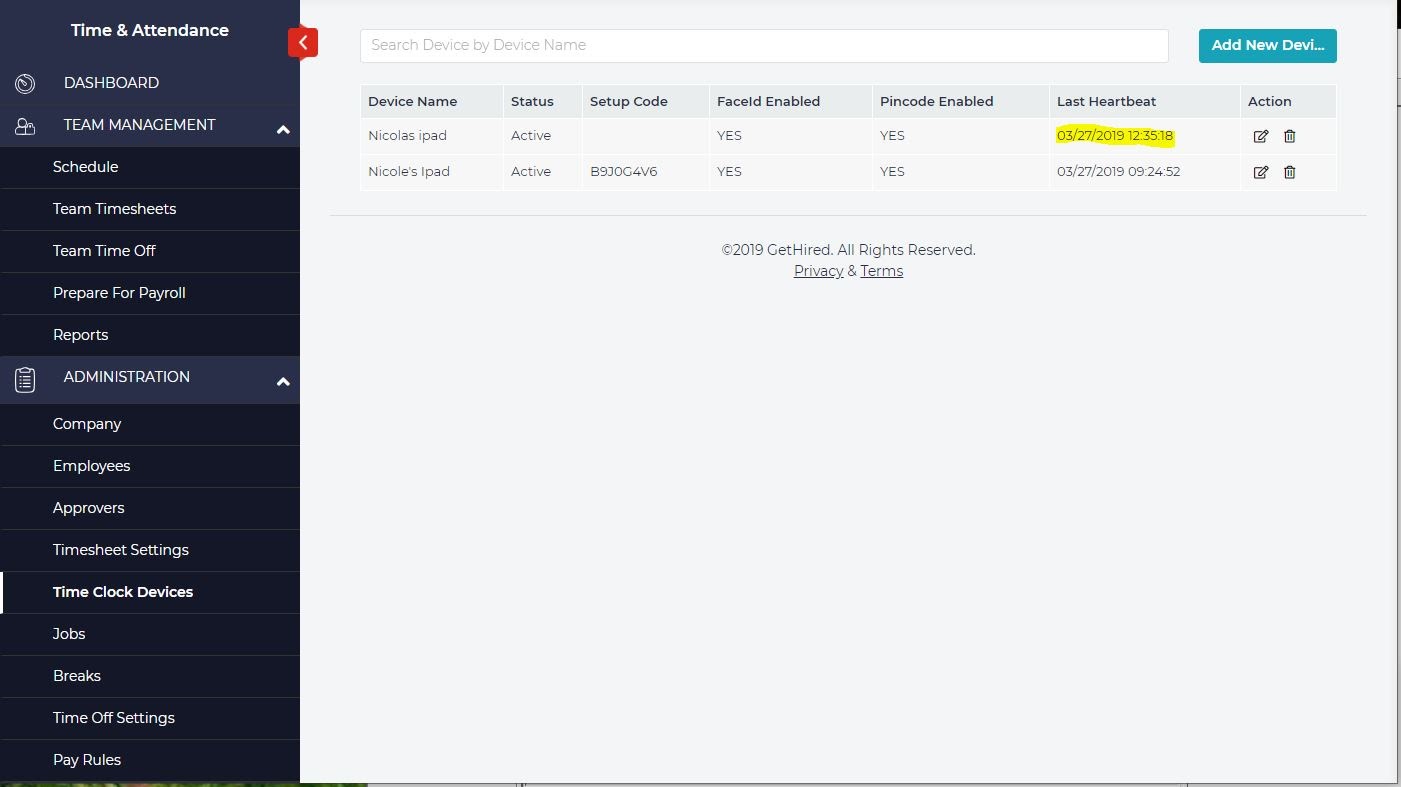
- Select Administration, then Time Clock Devices.
- Click Add New Device.
- Enter the displayed Clock ID from your iPad.
- On your iPad, select which method employees will be used for employees to identify themselves at the clock (ex: Face ID or PIN Key).
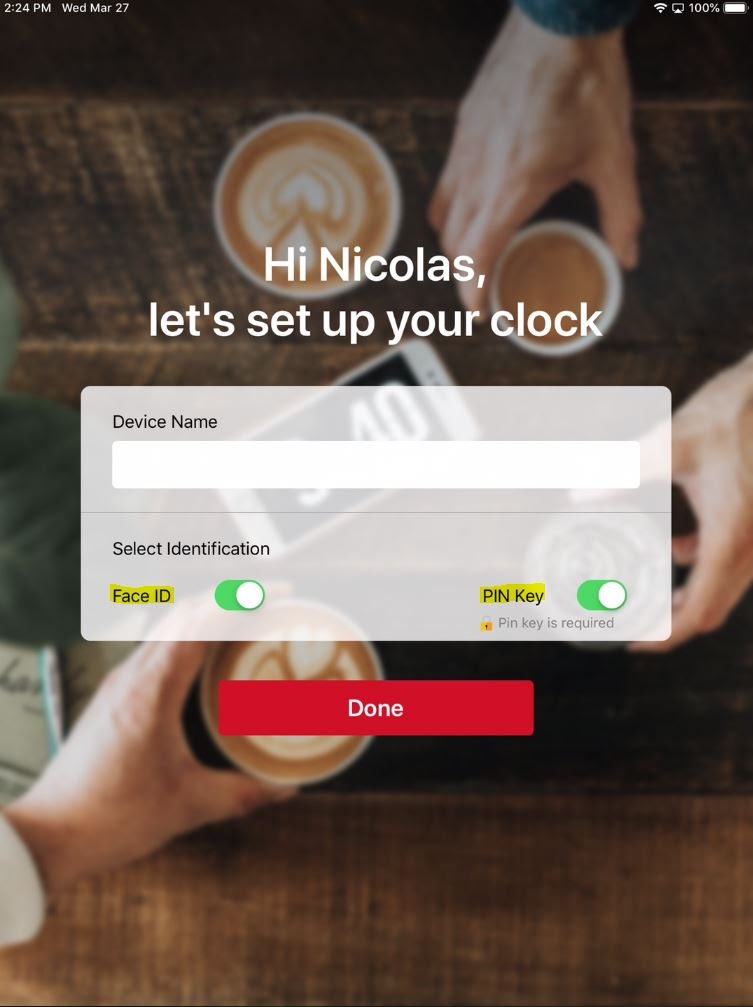
- Set the Device Name for the clock.
- Select Done when complete.
- The Time Clock will appear in the Heartland Time web page by selecting Administration -> Time Clock Devices. You will be able to see the "heartbeat" signal coming from the clock, indicating that it is active and online.
Closing
Congratulations on completing the Heartland Time setup process! Please see our other documentation and our Heartland Time and Attendance training videos.
 Back to Step 5 Back to Step 5 |
Back to the Quick Start Guide  |