How to Login to Heartland Time
Access to Heartland Time will be enabled by your support representative. Once enabled, you can enter Heartland Time through the following process:
- Login to your Heartland Time page at https://heartlandtime.com/implementation.
- Enter your Email Address and Password.
- Click Login.
Add a Customer Account
If you need to add a new Customer Account, follow these steps. If the account has already been created, follow the steps below in Login As Client
- Click Create Account.
- Enter the API key for the new client, then click Search.

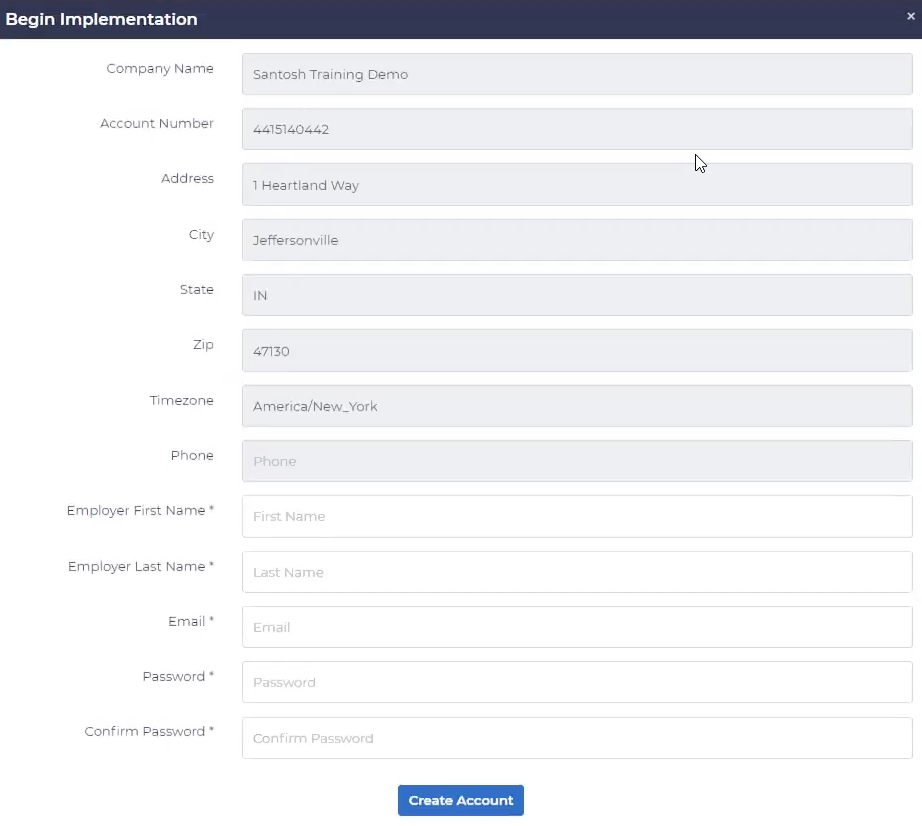
- In the Begin Implementation module, enter the Employer contact details. This will be used to create a Heartland Time client account. The following information is required:
- Employer First Name
- Employer Last Name
- Password and Confirm Password: These two fields must be the same.
- Click Create Account.
- There will be an initial synchronization between the client’s POS and the new Heartland Time account. Once complete, click Continue.
Login As Client
Login As Client allows a Heartland Time Implementation team member to access a Heartland Time Company Account under the same profile as the Company Employer. Any actions taken while you are in the Company Account as the Employer will have the same permissions, access to employee data, and other information.
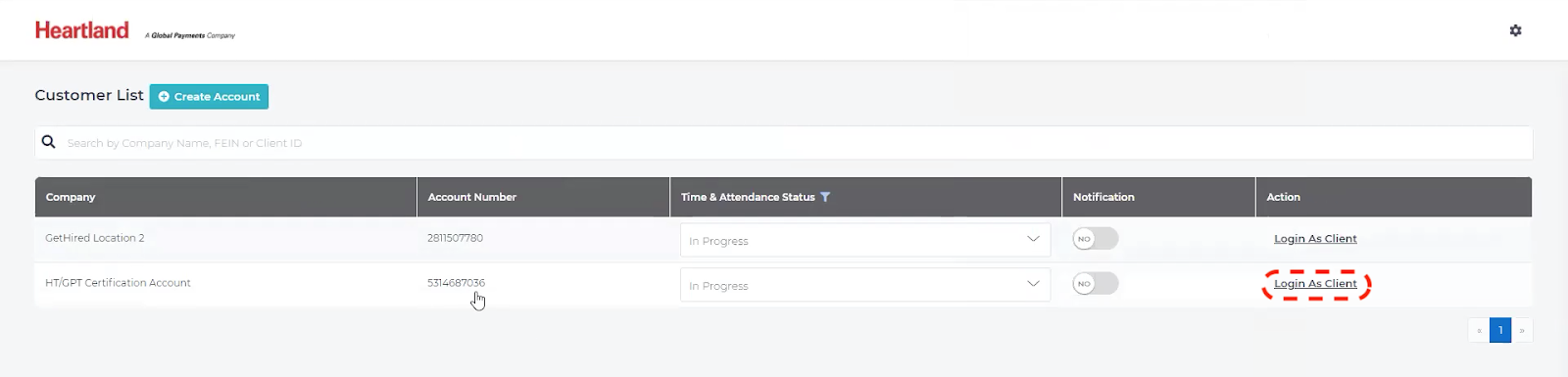
To access the Heartland Time Company Account as the Company Employer, click Login As Client under the Action column:
 Back to Introduction